This is a step-by-step installation tutorial for trial version of CF-MES+, for all the users in trial period. It also contains tips and tricks for troubleshooting in case you have some difficulties with your installation.

For successful installation, ensure you follow these steps.
1. Install CodeMeter licensing software
2. Import license in CodeMeter
3. Install CF Mesh+ software
Detail steps
1. Install licensing software
CF-MESH+ uses Wibu System’s Code Meter Control Center for licensing purposes, and it cannot run without a local installation of CodeMeter on each machine using CF-MESH+.
You can download it directly from Wibu’s site.
Alternatively, you can download it from our repository:
1.1. Installation of CodeMeter on Linux:
Rpm-based systems: rpm -ivh CodeMeter-x86_64.rpm
Deb-based systems: dpkg -i codemeter-amd64.deb
1.2. Installation on Windows:
run the installation package CodeMeter-win64.exe
This step requires superuser privileges. Please contact your system administrator for assistance, if needed. We understand this is a nuisance, however, this is CodeMeter’s demand, and this is a required step in the process.
2. Install a trial license
Note that your license is active for 14 days after installing the trial license. You can’t re-use an already activated license by reinstalling CodeMeter or CF Mesh+ software.
After asking for a free trial, you will receive an e-mail with a link to the trial license. In case you did not receive our reply, please check your spam folder or contact us.
Licenses can be installed by opening the Code Meter Control Center on your machine. The import functionality is available under the File menu.
For Windows users:
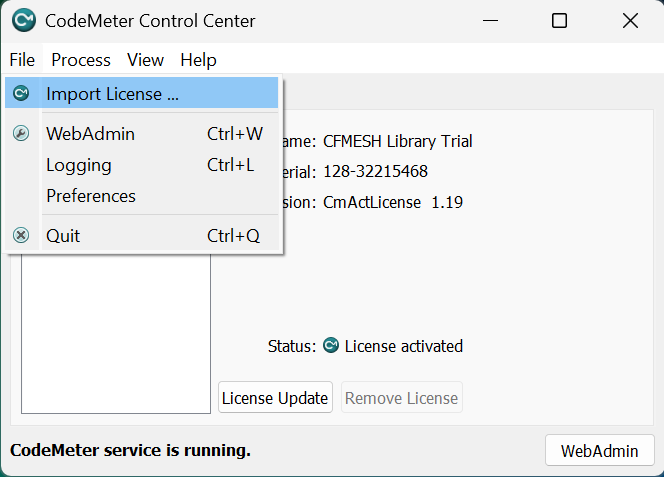
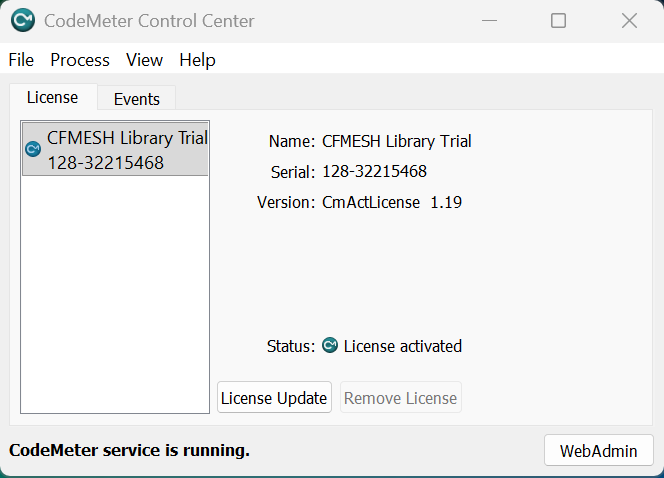
For Linux users:
You can open the GUI by typing CodeMeterCC in a terminal.
If you cannot open a GUI, it is also possible to install a license in a batch mode:
Linux: cmu –import –file CFMESH-Library_Trial.WibuCmRaU
3. Installing CF-MESH+
To install CF-MESH+, the machine has to have a valid CodeMeter running on it. CF-MESH+ is provided as an installation package.
Once you have downloaded the installation package for your platform (Windows or Linux), you can proceed with the installation.
To install the package:
Windows
To install the software, execute cf-mesh-windows-offline-installer.exe
Follow the instructions.
Linux with GUI
Check if the installation package has executing permissions. Executing permissions can be set by typing: chmod u+x ./cf-mesh-linux-offline-installer.run
To install the software: ./cf-mesh-linux-offline-installer.run
Select the installation folder and follow the instructions.
The installation package creates a shortcut on your desktop. When installing as a superuser, other users shall create shortcuts manually.
Software requirements
The GUI may not work out of the box on some Linux distributions. The GUI is based on Qt Libraries and requires the software listed on Qt Company’s website.
On Windows, all the packages needed for running the GUI are available in the installation package. If you face any difficulties, it is usually due to your graphics drivers that either need an update or a restart.
On Linux, some packages such as libxcb-cursor are not installed by default on some systems, therefore, you may need to install it to get the GUI running.
Troubleshooting
In case CF-MESH+ is not working after the installation, you can try out some of the following suggestions:
What if CF-MESH + GUI does not start on my machine?
The mesh in CF-MESH+ is not displayed in the viewer, it shows a blank screen
Out of CmContainer/WibuBox Expiration Time Error Message
We understand the first-time installation of CF-MESH+ can be a daunting task. You can check the FAQ section or contact our support if you face any difficulties.
Our latest blog posts
- Our best meshing practices for high-quality CFD simulations
- Is it always the mesh? Part 7: Volume Ratio – the Secret Killer Nobody Talks About
- Automatic Acute Edge Detection and Fillet Creation Algorithm
- Join us at the upcoming webinar “Next-Gen Meshing Technology at IANUS” with CF-MESH+
- Our Common Meshing Terminology